TG360 User Guide
Step-by-step guidance for every part of TG360 — from your first login to your first lender-ready package.
Prefer it offline?
Download the complete User Guide as a PDF, or print this page — the print view drops the navigation and keeps each step with its screenshot.
Guide sections
- 1
Getting Started
Create your account, set up your operation profile (fields, crops, entities), and connect your first year of data. Most operations are set up in under 30 minutes.
- 2
Crop Budget Analysis
Build field-level budgets for corn, soybeans, and wheat. Set inputs, yields, and pricing, and compare scenarios to see the break-even and margin on every acre.
- 3
Importing Your Schedule F
Upload a Schedule F PDF or export from your tax software. TG360 maps every line to the right account, previews the result, and lets you confirm before posting.
- 4
Importing Form 4562
Bring in your depreciation schedule so equipment, improvements, and accumulated depreciation land on the balance sheet automatically.
- 5
Uploading Invoices & Bank Statements
Drag and drop invoices, receipts, and bank statement PDFs or CSVs. TG360 codes each entry to the right account and flags anything that needs review.
- 6
Running the 4-Step Reports
Follow the guided workflow — import, upload, review, generate — to produce a lender-ready P&L, Balance Sheet, and Cash Flow.
- 7
Downloading PDF & Excel
Every report can be exported as a polished PDF or a working Excel workbook — ready to hand to your lender or your CPA.
- 8
Managing Your Account
Update billing, add users, manage entities, and configure notifications from the settings menu.
Set up a crop analysis in minutes
- 1
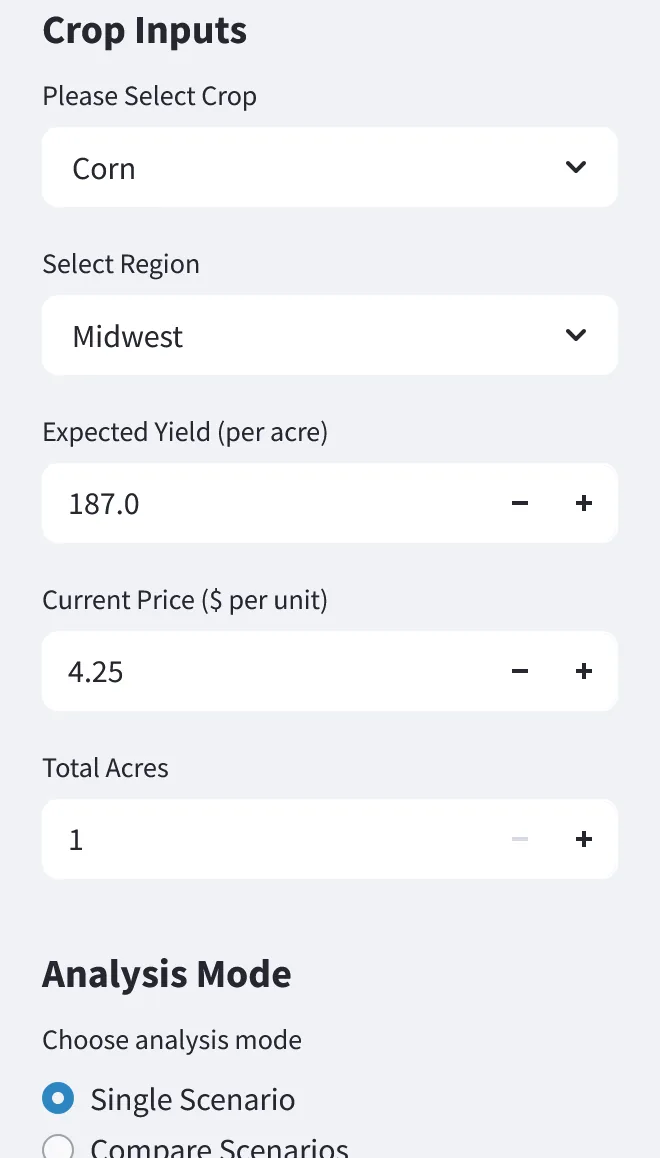
Select crop & region
Corn, soybeans, or wheat. Region presets (e.g., Midwest) seed realistic defaults so you start from real numbers.
- 2
Enter yield, price & acres
Expected yield per acre, current price per unit, and total acres for the field.
- 3
Government payments
Optionally include per-acre government payments in revenue.
- 4
Choose your mode
Single Scenario for one plan — or Compare Scenarios to test options side by side.
See what a cost change is actually worth
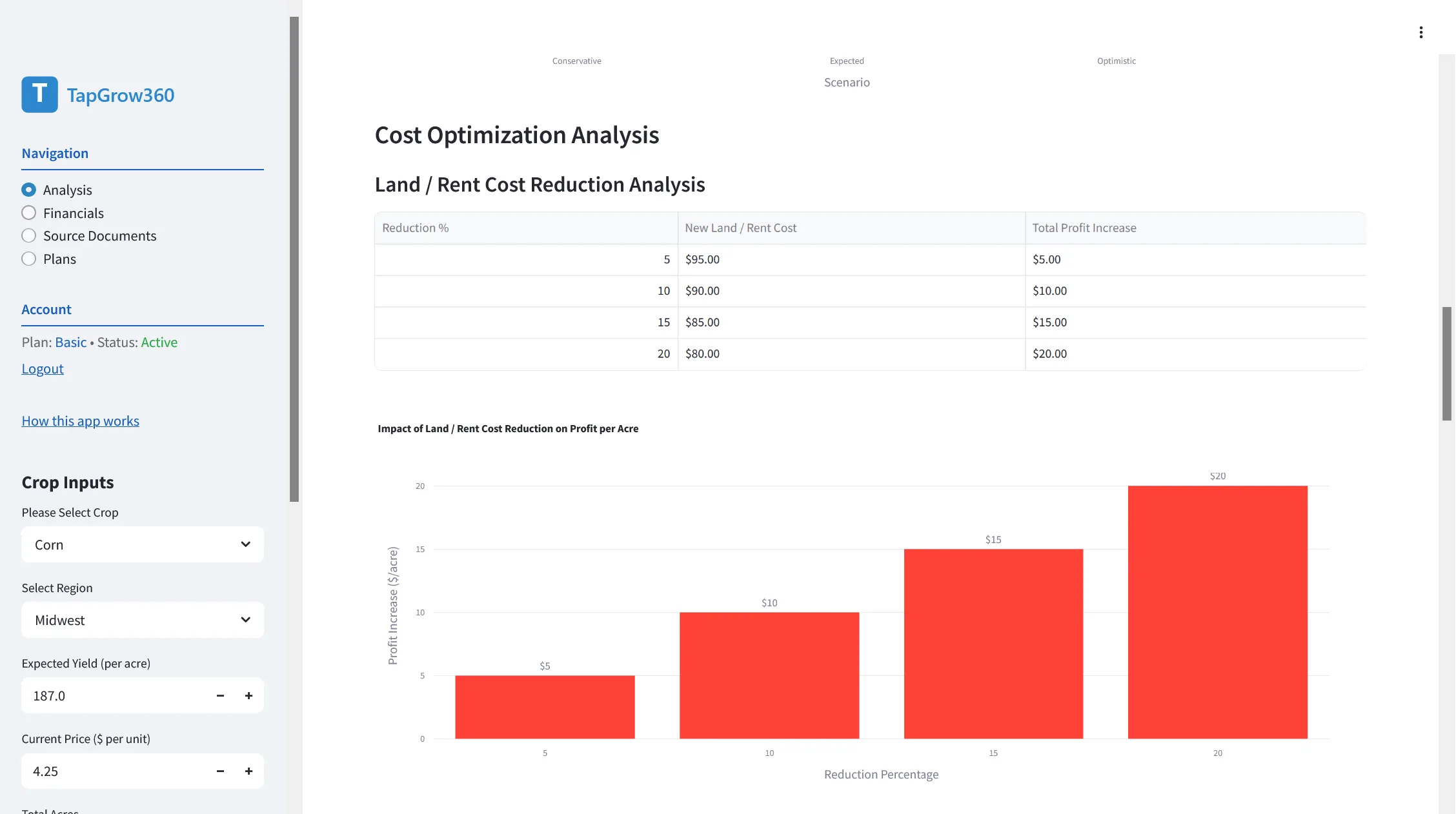
Once the budget is in, TG360 breaks down every cost category and models what happens if you trim it.
- 1
Cost breakdown by category
Seed, fertilizer, chemicals, land/rent, fuel, repairs, and drying — per acre and in total.
- 2
Reduction scenarios
Test 5%, 10%, 15%, and 20% reductions on any line and see the profit increase per acre.
- 3
Compare side by side
Run scenarios against each other before you commit to inputs for the season.
Four reports, built in order — the app keeps you on track
Reports build on each other. TG360 enforces the order and shows completion status for each step:
Operation Total
FoundationAggregates all saved crop analyses: total acres, revenue, costs, and profit for the whole farm.
Profit & Loss
Tax & bankingProfessional P&L by calendar or fiscal year — formatted for tax prep, bankers, and planning.
Balance Sheet
Loan-readyAssets, liabilities, and net worth. Pre-filled from Form 4562; every field editable with actuals.
Cash Flow
Full pictureOperating, investing, and financing flows. Unlocks once P&L and Balance Sheet are complete.
Every report downloads as PDF or Excel. Status badges (Not Started / Complete) track your progress across the set.
From operation totals to a bankable P&L
- 1
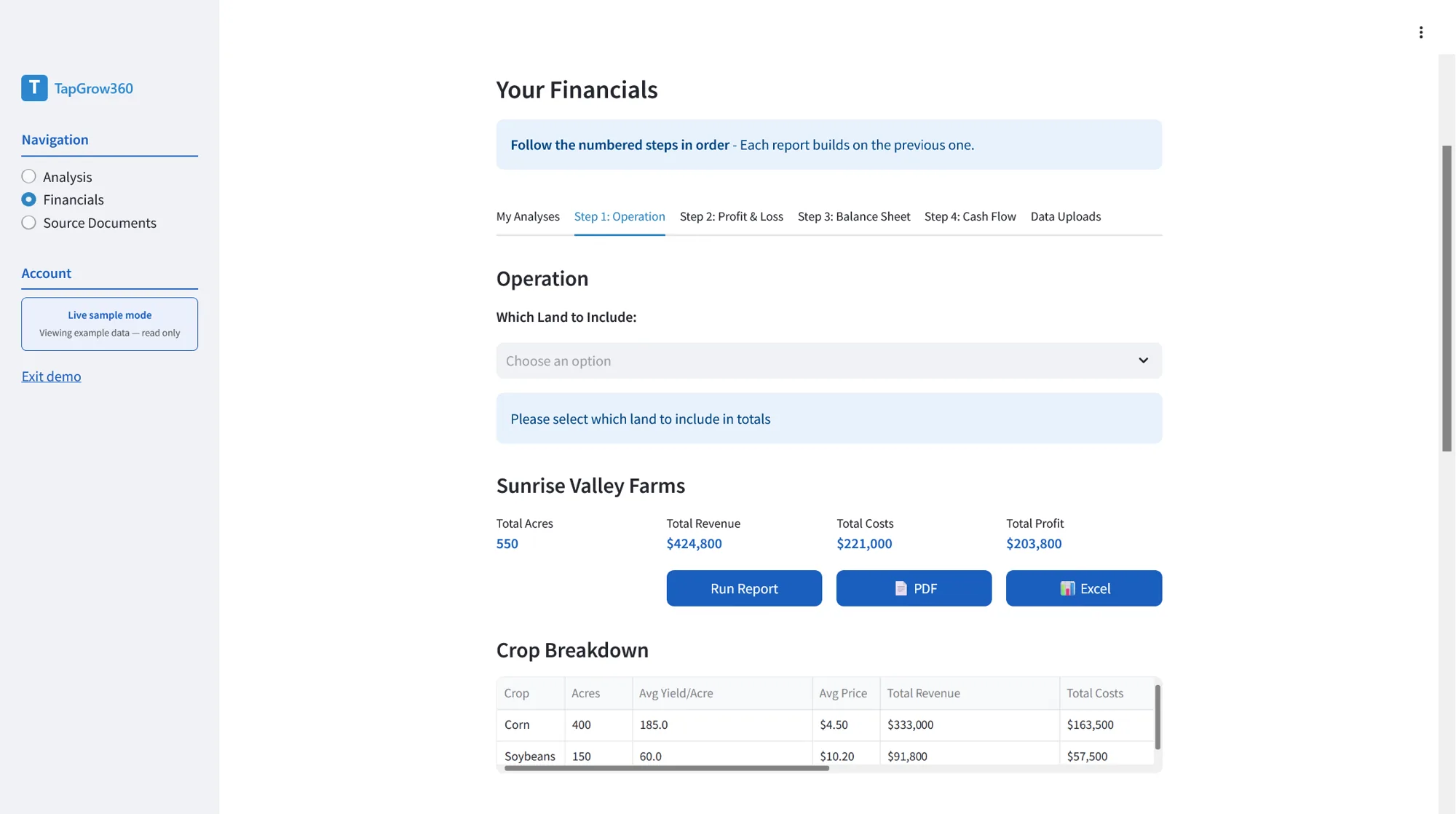
Step 1 — Operation
Pick which land to include. TG360 rolls up total acres, revenue, costs, and profit, with a crop-by-crop breakdown.
- 2
Step 2 — Profit & Loss
Generate a P&L on a calendar or fiscal year, from Plan projections, scanned Actuals, or a Plan-vs-Actual comparison.
- 3
Export it
Run the report, then download the PDF or Excel version straight from the screen.
A balance sheet your lender can read
- 1
Pre-filled, then edited
Assets, liabilities, and net worth start from your Form 4562 import — click any field to enter your actual numbers.
- 2
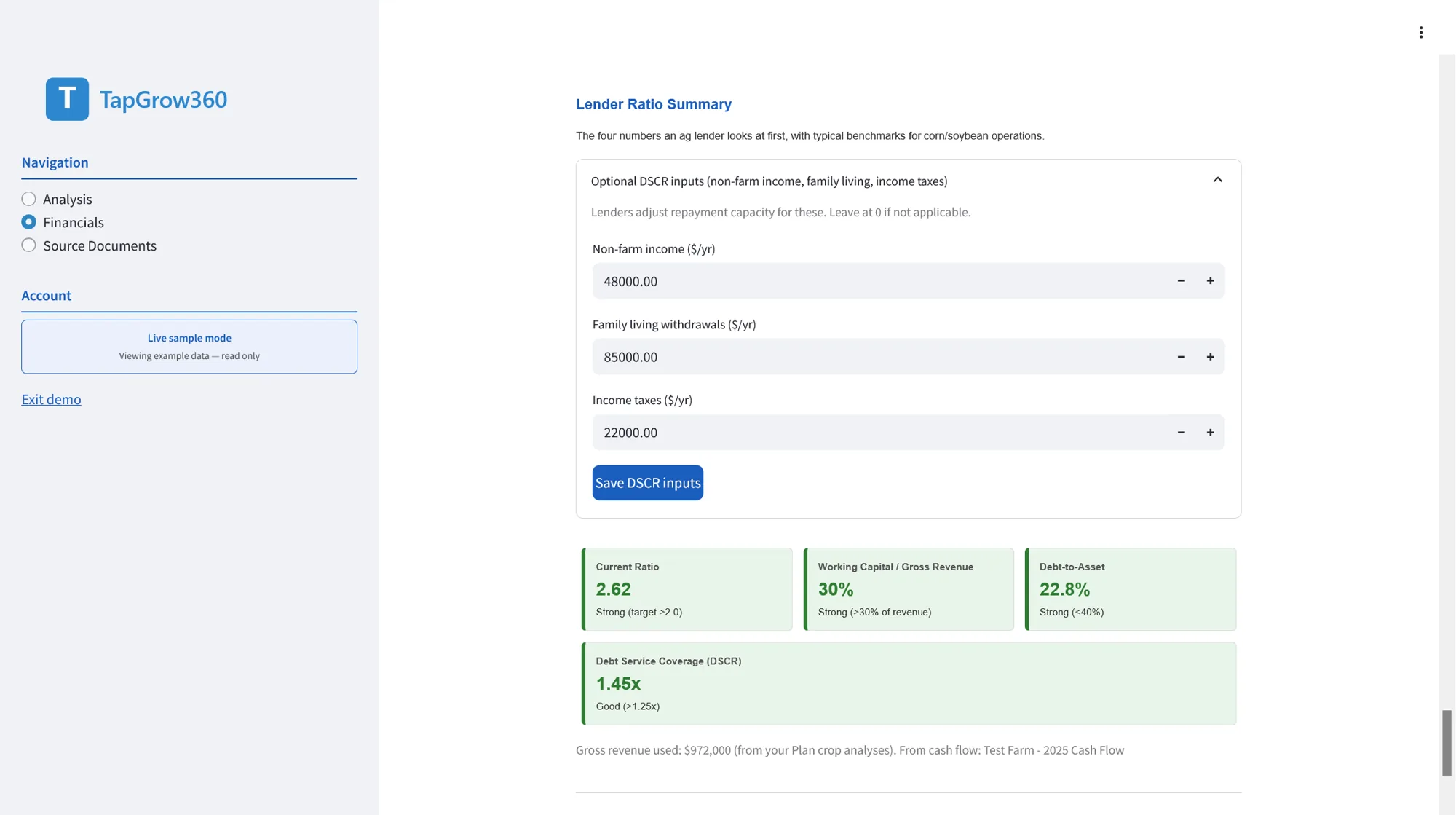
Lender ratio summary
Current ratio, working capital to gross revenue, debt-to-asset, and DSCR, each shown against typical corn/soybean benchmarks.
- 3
DSCR inputs you control
Add non-farm income, family living withdrawals, and income taxes so the coverage ratio reflects your operation.
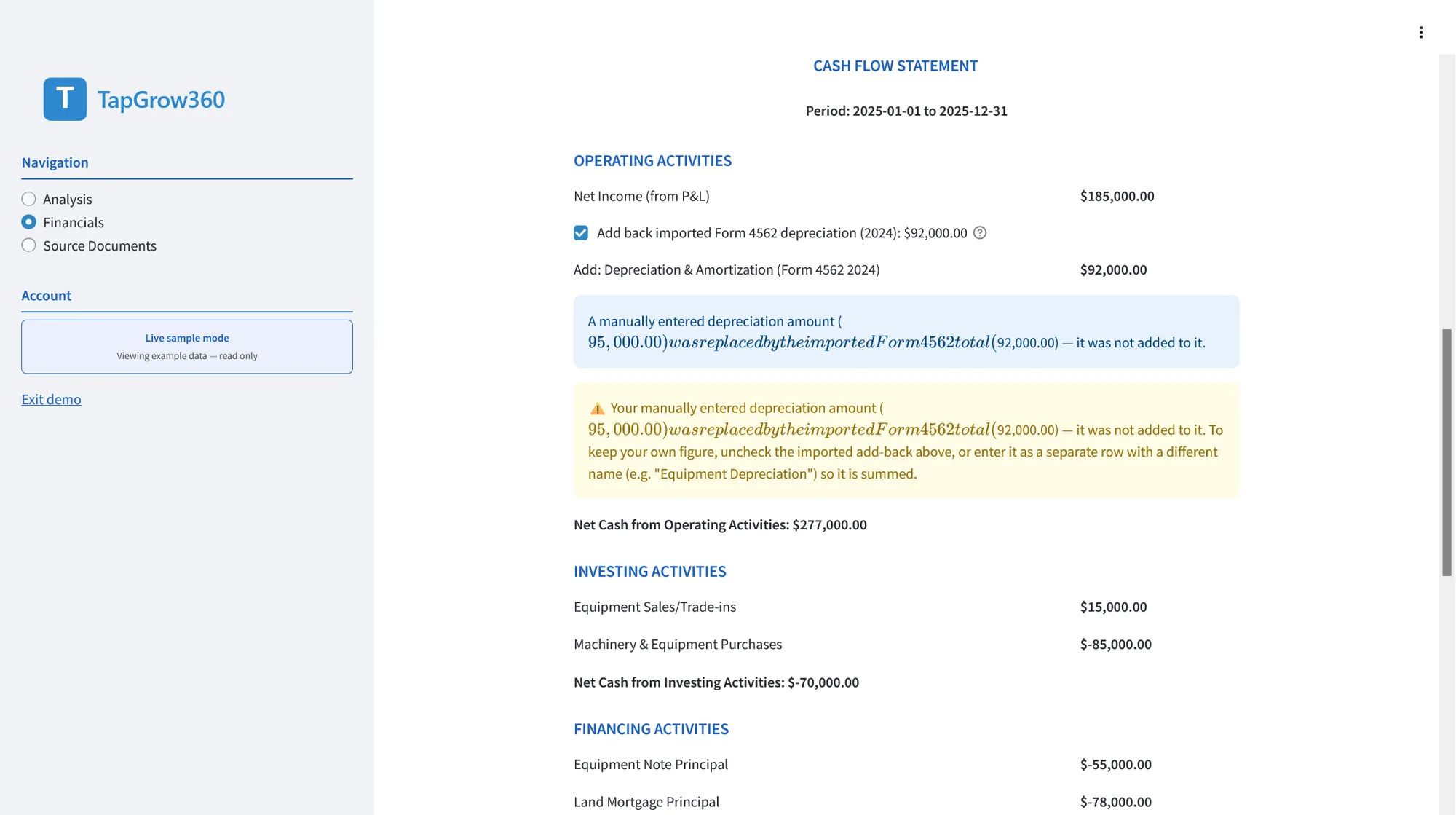
Cash flow that ties back to the other reports
- 1
Operating activities
Net income carries over from the P&L, with imported Form 4562 depreciation added back automatically.
- 2
Investing & financing
Equipment sales and purchases, equipment note principal, and land mortgage principal in one statement.
- 3
Conflict warnings
If a manual depreciation entry conflicts with the imported total, TG360 flags it instead of double counting.
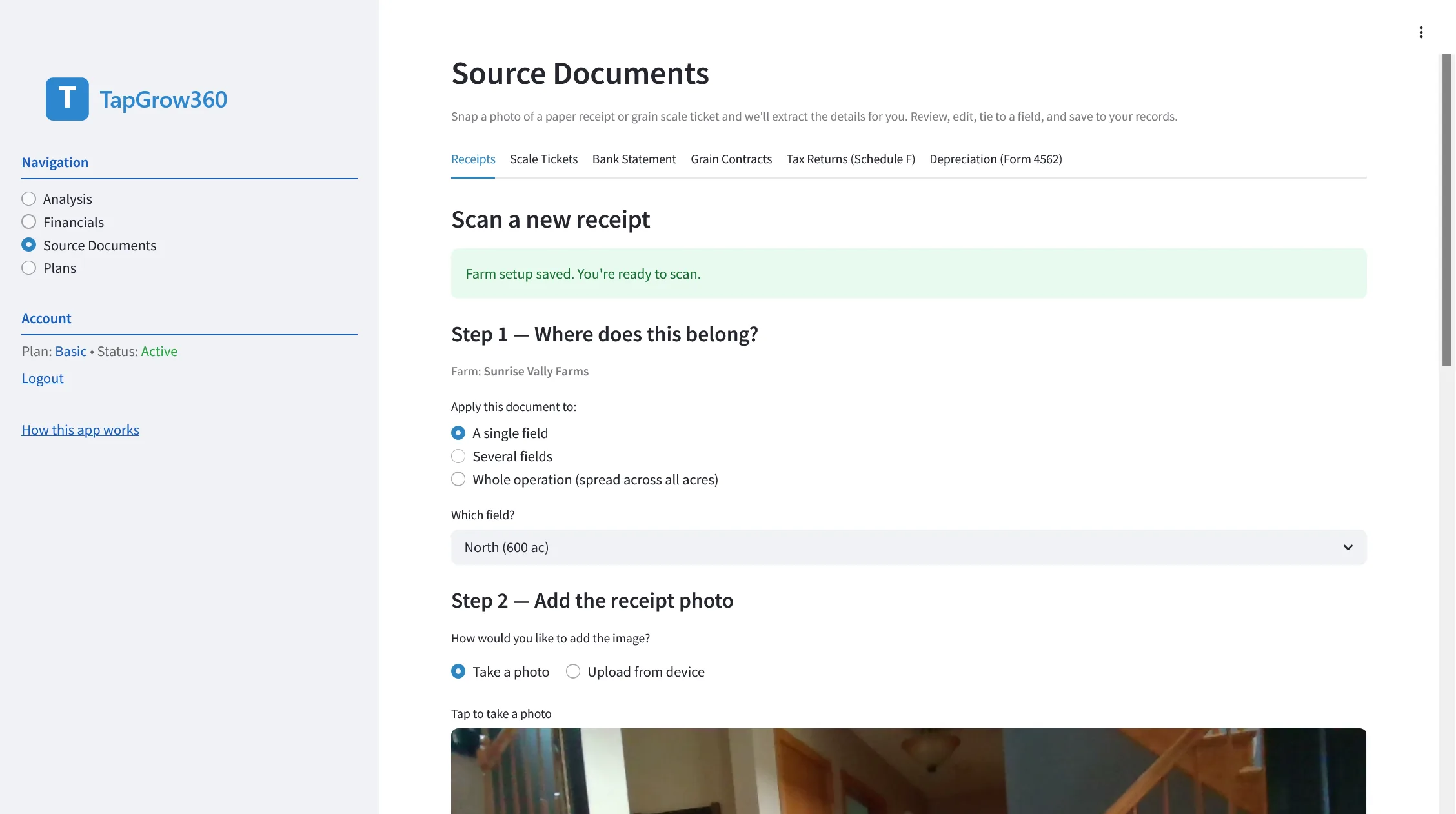
Snap a photo — invoices & bank statements
- 1
Photo from the cab or kitchen table
Shoot a vendor invoice or bank statement from your phone — in the cab or at the kitchen table. Drag-and-drop works too.
- 2
TG360 reads & categorizes
The document is read, transactions are categorized, and expenses are assigned to the right farm and field.
- 3
Books stay current all season
Expenses land in the right buckets as the year goes — no legal-pad backlog in December, no scramble before renewal.
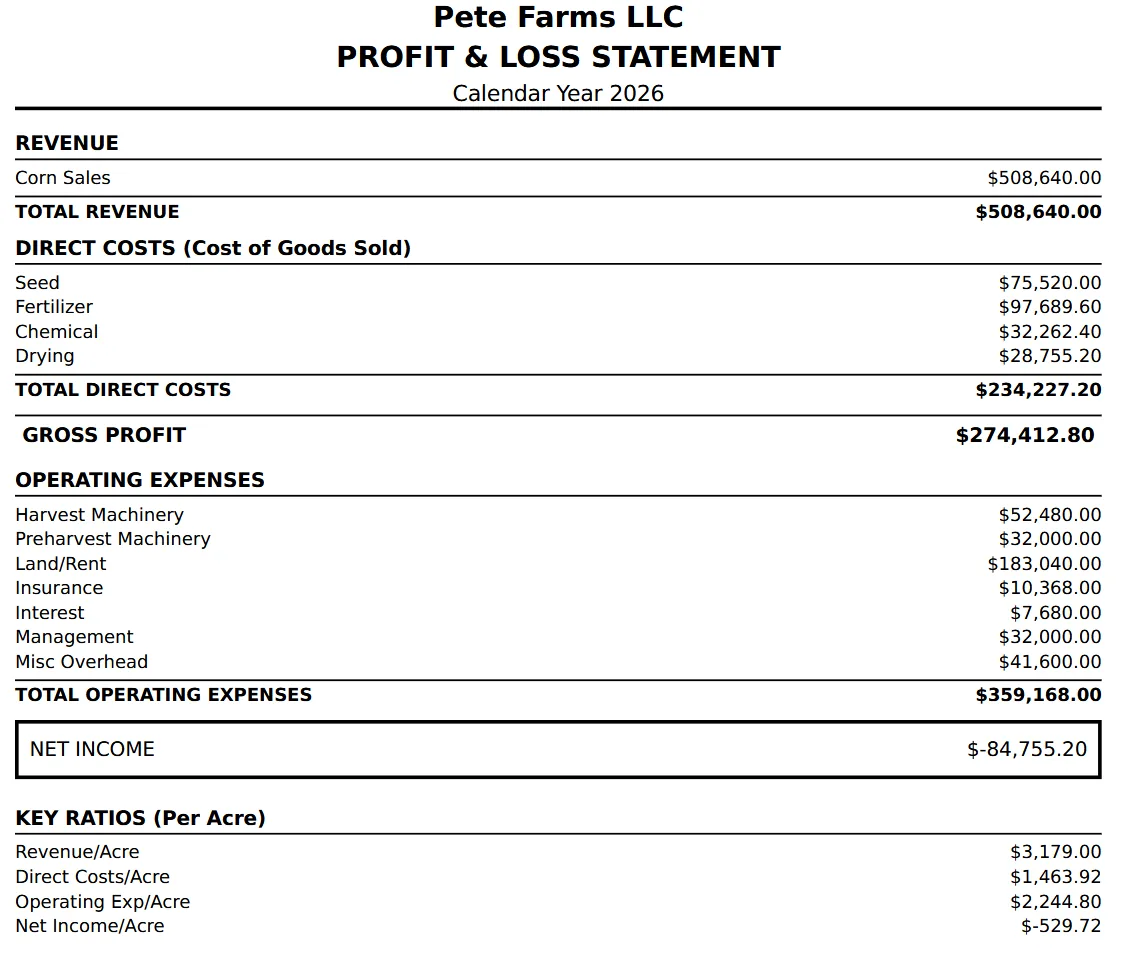
The statement you hand to the bank
- 1
Formatted, not improvised
Revenue, direct costs, gross profit, operating expenses, and net income laid out the way a lender expects to see them.
- 2
PDF or Excel
Hand the PDF to your lender and the workbook to your accountant — same numbers, both formats.
- 3
Saved across sessions
Log out and come back next month; analyses, uploads, and reports are all still there.
What you walk away with
PDF & Excel downloads
All four reports export in both formats — ready to hand to a lender or accountant.
Works on any device
Phone, tablet, or computer — designed for the cab as much as the kitchen table.
Saved across sessions
Log out, come back next month — analyses, uploads, and reports are all still there.
Your data stays yours
Financial data is protected and accessible only to the account owner.
Built by farmers, for farmers. Feedback from real operations shapes every feature.